A desktop computer is featured in this post on Troubleshooting Common IT Issues: Quick Fixes Before Calling the Pros.

Troubleshooting Common AV Issues: Quick Fixes to Try Before Calling the Pros

In this blog post, we’ll dive into the importance of maintaining your audiovisual system with routine maintenance, cover a few helpful troubleshooting techniques for resolving common AV problems, and offer guidance on when to call an AV professional.

Nothing derails a presentation or meeting faster than an uncooperative audiovisual system. Whether it’s a projector that won’t display, a microphone that refuses to work, or speakers emitting crackling static, AV hiccups are a source of frustration. Fortunately, many of these issues have quick fixes that don’t require a service call. We’ll walk you through some of the most common AV problems and the simple troubleshooting steps everyday users can take before placing a service call.

Common AV System Issues

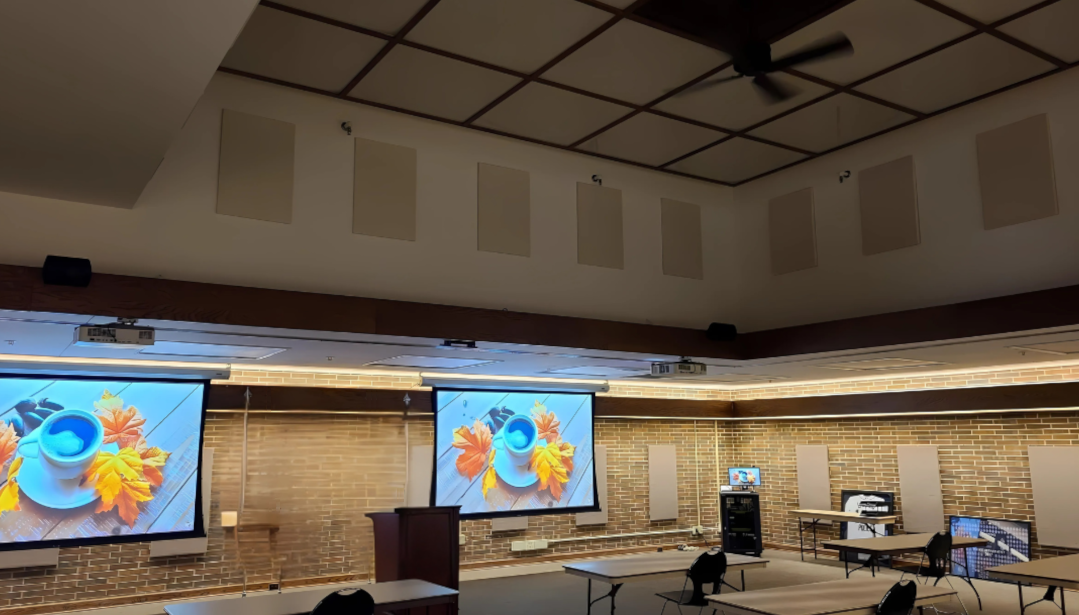
In office conference rooms of all sizes, some of the most common audiovisual issues stem from connection problems between devices—laptops not displaying on the screen due to incorrect input selection, loose HDMI or USB cables, or compatibility issues with the display system.

Sometimes the solution can be something as simple as identifying a wire that has been moved and plugged into a wrong input.

Audio challenges are also common, with participants unable to hear or be heard due to muted microphones, depleted batteries in wireless mics, or improperly configured speaker and microphone settings. Echoes, feedback, or low volume levels often result from poor microphone placement or audio system calibration.

Video conferencing systems may fail to connect or show video because of network issues, outdated software, or webcam malfunctions. Additionally, touch panels or control systems can become unresponsive if there’s a power interruption or settings have been altered accidentally.  Even something as simple as dead batteries in a remote control or someone unplugging a key cable can bring a meeting to a halt.
 

Quick Fix Tips for Common Conference Room AV Problems

While many of these issues can be resolved with a few basic checks, it’s important to keep in mind that persistent problems may point to deeper configuration or system design flaws that require the skill of a trained technician to correct.  So how do you know when to call the professionals?  Before submitting a system support call, try to identify the source of the problem.

If you’re experiencing AV issues, we recommend first trying these troubleshooting tips:

1.  No display on screen or projector:

  • Double-check the input source on the display (HDMI 1, HDMI 2).
  • Ensure cables (HDMI, USB-C) are securely connected at both ends.
  • Restart both the laptop and the display device.
  • Try a different cable or computer port if one is available.
  • Confirm the laptop is set to mirror (show the same thing that’s on the laptop screen) or extend mode (display different views on each screen).

2.  No sound or low audio:

  • Check the volume settings on both the device and the conference room audio system.
  • Make sure the correct audio output device is selected on the computer (is the audio still set to come from the headphones you were using yesterday)?
  • Ensure the room speakers or soundbar are powered on and properly connected.

3.  Microphone not working:

  • Verify the microphone is not muted (physically or in software).
  • Replace or recharge the batteries in wireless microphones. When recharging, make sure microphones are resting properly in their cradles.
  • Confirm the correct microphone is selected in the video conferencing app.

4.  Feedback or echo during video calls:

  • Move microphones away from room speakers for optimal sound and reduce feedback.
  • Lower room speaker volume slightly to reduce audio loopback.
  • Lower microphone gain and speak directly into the microphone.
  • Use a single device for audio input/output to avoid feedback from multiple sources.

5.  Video conferencing camera not detected:

  • Check USB connections to ensure the camera is plugged in securely.
  • Restart the conferencing software or computer.
  • Update video conferencing software and camera drivers if needed.

Bonus 6.  Control panel or touchscreen not responding:

  • Check for power to the control panel (look for status lights or a blank screen).
  • Reboot the system if possible.
  • If an iPad is used for control, confirm which wireless network it is connected to.


    Sound Masking

    Troubleshooting Common AV Issues and When It’s Time to Seek the Assistance of an AV Professional

    While basic troubleshooting can resolve many AV issues, persistent problems or outdated systems may need a professional touch. If you’re tired of wrestling with unreliable equipment, our team is here to help. Contact us today for a free assessment of your audiovisual system—we’ll evaluate your setup and recommend solutions to ensure smooth operation for every meeting, event, or presentation.

    To learn more about our AV and IT solutions or to schedule a free assessment of your current technology or room setup, contact us today.

    For more smart content, follow us on Facebook, Instagram and Linked In.

    Share This

    Share This

    Share this post with your friends!